In
this chapter:
 Quick Pocket Finance Quick Pocket Finance
Using Pocket Finance
Starting Pocket Finance
Adding transactions
Editing transactions
Using the detail view
Deleting a transaction
Adjusting the display
Editing split transactions
Creating new accounts
Using the Calculator
Closing Pocket Finance
Keyboard shortcuts
Transaction fields
Troubleshooting
 |
|
Using the detail view The detail view shows the memo, category, and subcategory fields, in addition to the fields shown in the register. To use the detail view, follow these steps:
- Single-tap on the row you want to edit. (You cannot switch to the detail view if you double-tap to show the fields in the register.)
- Tap
 (Details) or press Alt + Enter. (Details) or press Alt + Enter.
- Modify the information in the fields. If the fields are gray, the transaction was transferred from your PC and you cannot edit it.
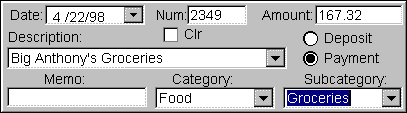
- Press the Enter key to save changes to a transaction.
- While you are using the detail view, you can:
- Scroll the register behind the details. Select different rows to see their detail information.
- Edit or delete transactions you added since you last transferred the account. Press Enter after editing each transaction.
- Tap
 (New) to add a transaction and edit its details. (New) to add a transaction and edit its details. - Drag the stylus to move the detail view.
- Tap (Details) again when you want to hide the details.
![[ Previous ]](images/navbprev.gif) ![[ Next ]](images/navbnext.gif) |