In
this chapter:
 Quick Pocket Finance Quick Pocket Finance
Using Pocket Finance
Starting Pocket Finance
Adding transactions
Editing transactions
Using the detail view
Deleting a transaction
Adjusting the display
Editing split transactions
Creating new accounts
Using the Calculator
Closing Pocket Finance
Keyboard shortcuts
Transaction fields
Troubleshooting
 |
|
Editing split transactions The transaction register shows a  symbol to the right of the Description column for transactions that have splits. symbol to the right of the Description column for transactions that have splits. Splits assign a portion of the transaction amount to different categories. To use splits, follow these steps:
- Single-tap on the row to which you want to create or edit splits. (You cannot switch to the split view if you double-tap to show the fields in the register.)
- Tap
 (Splits) or press Alt + S. (Splits) or press Alt + S.
- The split view shows the description and amount above the column headings.
- Tap
 (New) to add a split row or double-tap an existing split row. (New) to add a split row or double-tap an existing split row.
- Type split information in the fields.
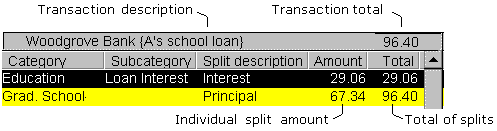
- Press the Enter key to save changes to each row.
- Make sure the total in the last split row is the same as the transaction total shown above the column headings.
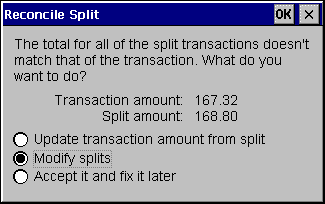
- Tap (Splits) again or press Alt + S to hide the splits. If the total of the split rows and the transaction do not match, Pocket Finance will ask how you want to fix the problem.
Warning:
It is important that you fix this problem before transferring data
back to your PC. Choose to Accept it and fix it later only if you are sure
you will remember to fix it later.
![[ Previous ]](images/navbprev.gif) ![[ Next ]](images/navbnext.gif) |