In
this chapter:
 Exporting from Quicken Exporting from Quicken
Exporting from Money
Account transfer options
Sending to your H/PC
Smart Synchronization
Dealing with large accounts
Removing an account
 |
|
Smart Synchronization Pocket Finance Administrator can compare file modification dates on your PC and H/PC and decide which files need to be transferred. Important:
Remember that you still need to export QIF files from Quicken or
Money after updating accounts on the PC and before transferring
files to your H/PC. You also need to import QIF files into Quicken
or Money after transferring files from your H/PC to your PC.
The first time: enabling Smart Synchronization To enable "Smart Synchronization," follow these steps:
- Start Pocket Finance Administrator.
- From the Configure menu, choose Options.
- Put a check mark in the Smart Synchronize box.
- Click Browse and find the folder to which you export files from Quicken or Money. Then click OK.
- Click OK in the Pocket Finance Properties dialog. The main window will expand to include the Synchronize button.
Synchronizing accounts
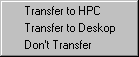
- You'll see a list of your accounts at the bottom of the window. Smart Synchronize compares modification dates on your PC and H/PC. It shows the recommended action in the right column.
- If you need to change the action, right-click on the account name and choose an action from the list.

- When you are ready to synchronize your account data, click the Synchronize button.
- If you checked the Ask Starting Balance box in the Pocket Finance Properties dialog, you will be asked for the starting balance for the account. Type the amount you wrote down in the "Dealing with large accounts" section.
If the account has been updated on both your PC and your H/PC, don't worry. Just follow these steps:
- First, transfer the account from your H/PC to your PC and import the QIF file into Quicken or Money.
Unless you specify otherwise, only transactions you add on your
H/PC are imported into Quicken or Money. You won't lose either
set of transactions.
- Then, export a QIF file for the account and transfer it back to your H/PC.
![[ Previous ]](images/navbprev.gif) ![[ Next ]](images/navbnext.gif) |